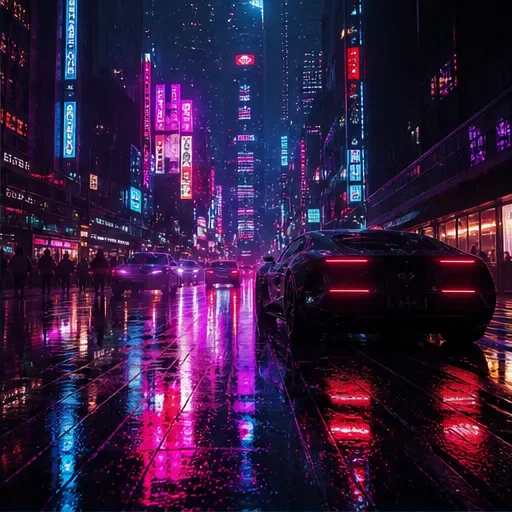
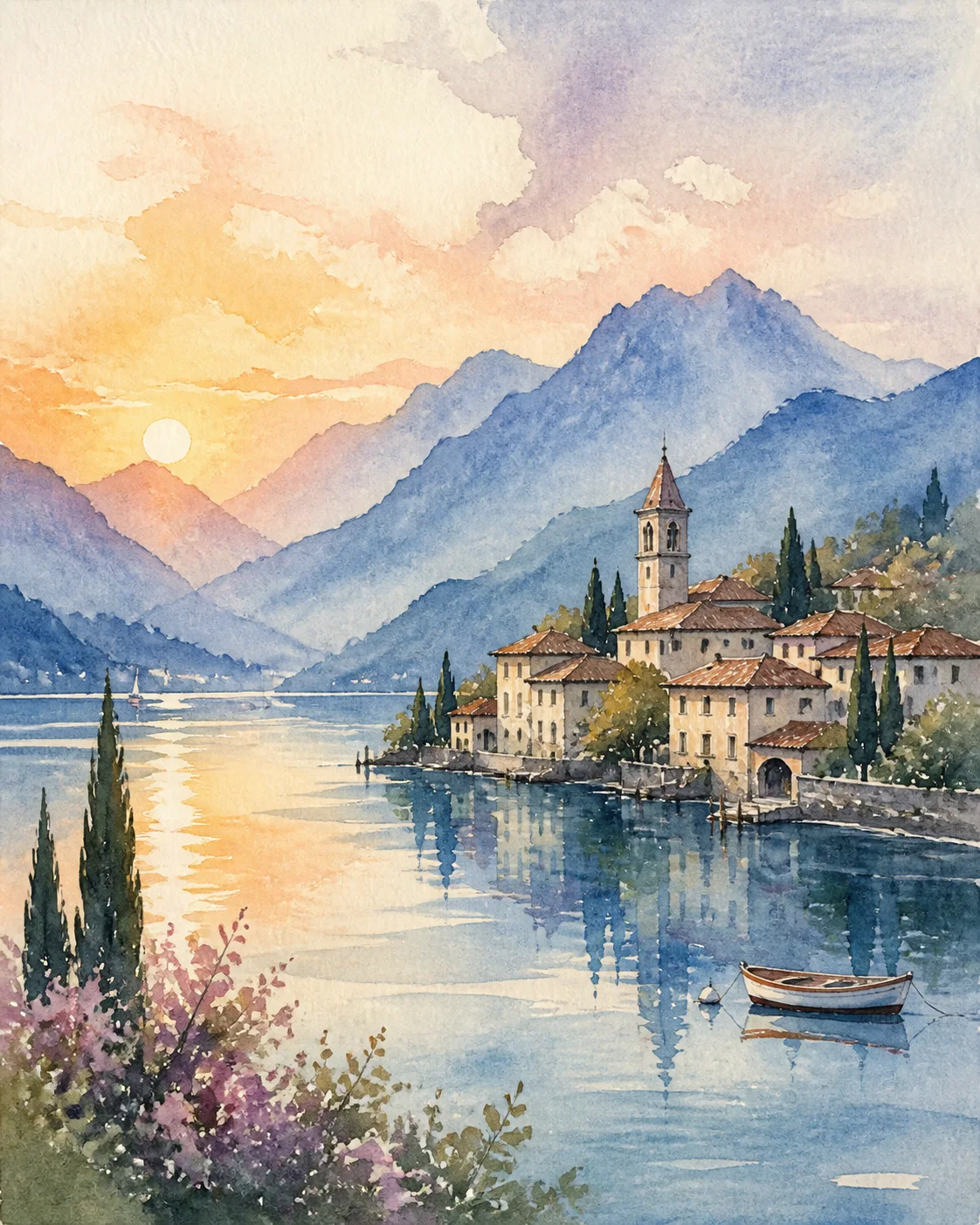
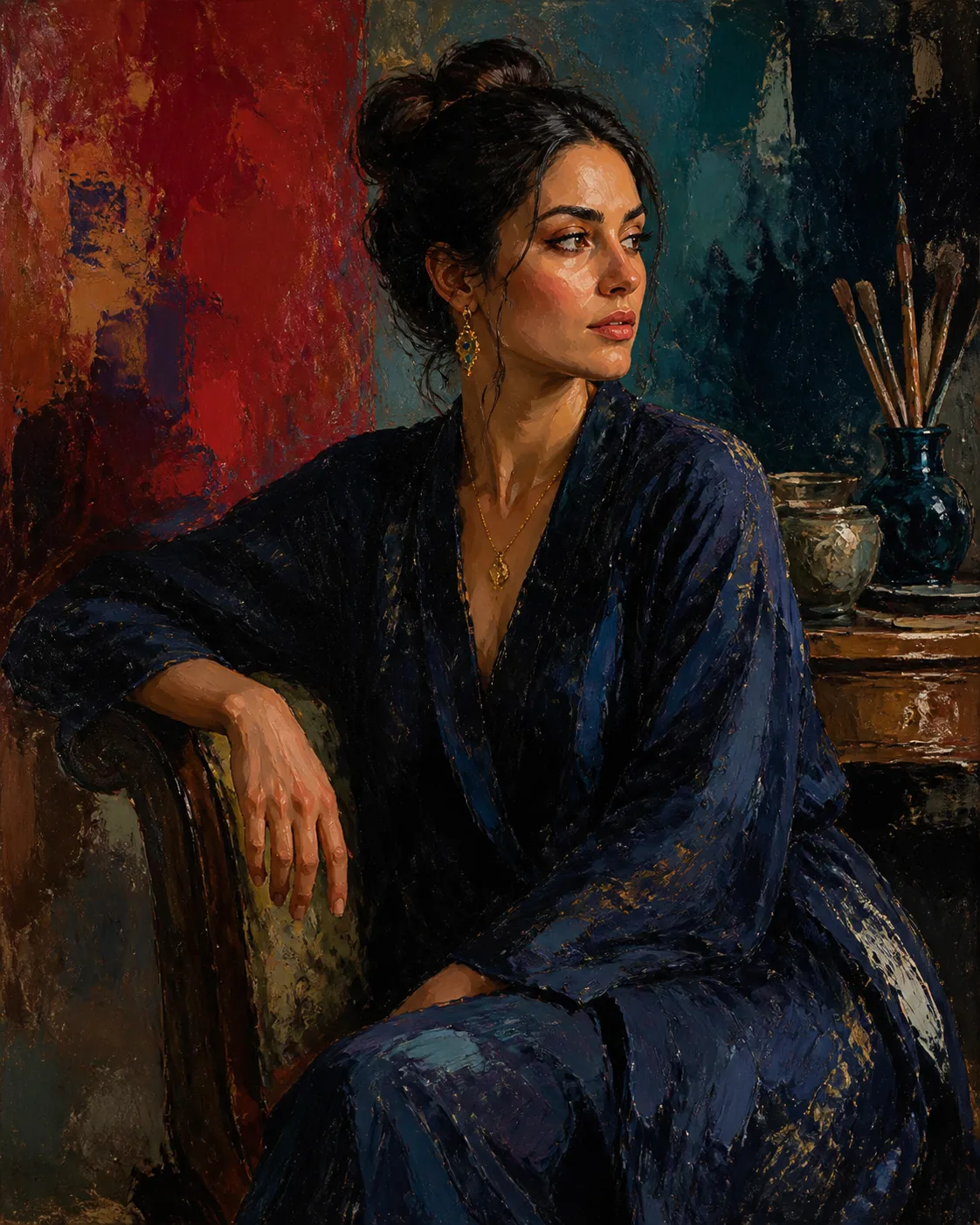
TextImage
Text to Image
Explore concepts, campaign directions, illustrations, and product scenes from a written brief.
Open Text To Image

Create AI images and short videos from text or reference media with multiple models in one workspace. Compare model controls and credit costs, then track every generation from prompt to finished result.
Choose the output you need, then decide whether text or an existing image should guide it. Each mode opens only the inputs and controls relevant to that job.
Explore concepts, campaign directions, illustrations, and product scenes from a written brief.
Open Text To ImageKeep useful structure or identity while changing the setting, treatment, lighting, or composition.
Open Image To ImageDescribe a subject, action, setting, and camera behavior when no fixed opening frame is required.
Open Text To VideoAnimate an approved image while directing subject motion, camera movement, and scene stability.
Open Image To VideoCreate original visuals from a written idea or reference image in one focused studio.
Turn a prompt or starting image into a short video with model-specific motion controls.
Generate a few clear art directions before spending time on detailed refinement.
Use the strongest frame as a reference and adjust the setting, styling, or composition.
Add one deliberate subject action or camera move after the still image is approved.
Compare results, track progress, and download the finished image or video from one history.
4 modes
Use text or an image to create either a still image or a short video.
Model-aware
Inputs, settings, and validation adapt to the selected mode and model.
Upfront cost
The displayed credit cost is part of the decision, not a surprise afterward.
One history
Follow image and video progress, previews, and downloads in one shared timeline.
Choose a model that matches the input, output, and level of control your task needs.
Start from a defined creative goal, then adapt the image, prompt, and model to your project.
Apply a focused visual direction to a reference image without rebuilding the brief from scratch.
Prepare, expand, upscale, or clean up images before the next stage of your project.
Compare current plans and credit options.
By subscribing or purchasing a credit pack, you agree to our Terms of Service and Privacy Policy. Subscription and credit-pack charges are non-refundable except where required by law. Subscription credits refresh monthly and do not roll over; credit-pack credits do not expire. You may cancel at any time, and your plan remains active through the paid period. Plan changes are charged and take effect at the next renewal. Contact us about incorrect charges or billing issues. See our Refund Policy for exceptions and details.
Use these answers to understand the Genify workflow without assuming that every model has identical inputs, limits, or controls.
Signed-in users receive daily free credits. A task can use them when the current balance covers the quote shown on the generate button. Image and video costs vary by model and settings, so Genify displays the required credits before submission.
Generation time and visual quality vary by model, current demand, settings, and task complexity. Genify gives you multiple models in one creation workspace, so you can use a faster option for exploration and compare a more detailed option for final work without moving your history to another product.
The homepage supports four workflows: text to image, image to image, text to video, and image to video. Use the mode switch to choose the output and starting material. Background removal is a separate utility because it isolates an existing subject rather than generating a new scene.
No. Genify provides one interface for several selectable models, with controls tailored to each creation mode. Available models, accepted references, settings, credit cost, and output behavior can differ. The selected model and the fields shown on screen define the options available for that task.
Use text to image when you want broad visual exploration without preserving an existing layout. Use image to image when a reference should influence subject placement, structure, palette, or style. Describe the intended change and the details that must remain.
Image to video is the better starting point when the opening frame, character, product, or composition already matters. Text to video offers more freedom when no fixed frame is required. In either mode, short clips work best with a clear action and camera direction.
After Genify validates and submits a request, it opens Workspace. There you can follow progress, browse generation history, preview or download results, and continue creating without moving between separate result pages.
No. Some workflows use only a prompt, some require an image, and some models accept additional image, video, or audio references. Ratios, resolutions, durations, output counts, and audio controls also vary. Read the current uploader and settings before submitting.